
Visual BACnet is a powerful program that removes the guesswork in diagnosing problems on your network. It provides a concrete Network Health Score, highlights key issues, and empowers users to improve their networks over time.
But you have to give it the right data first, and that means knowing where on the network to capture. Watch our short, 10-minute webinar, where we dug into the basics of packet capture for Visual BACnet.

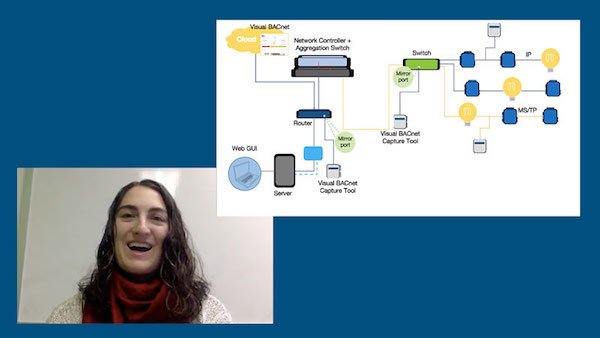
We worked with a fairly general network diagram to show where to packet capture IP and MS/TP traffic, and in different areas of the network.

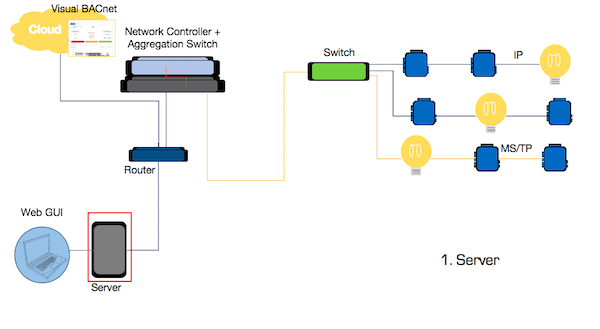
For our first packet capture, we talked about capturing from the server. You can do this by connecting directly to the server and capturing from Wireshark onto your device. From our experience, this should get about 70% of your network traffic, but that depends a lot on the layout of your network. You will get any traffic from devices talking directly to the server, as well as the global broadcast traffic.
You can also install the Visual BACnet Capture Tool for Windows directly on your computer. That software will also send the pcap files straight to Visual BACnet, and don’t need to buy any new hardware to host it.
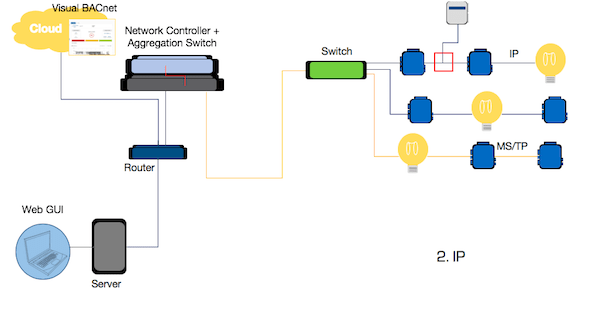
You can also capture right from the IP chain. In this case, we’ve wired our Visual BACnet Capture Tool directly into the chain to send data straight to Visual BACnet. Alternatively, you could connect from your computer, capture in Wireshark, and then upload those pcap files to Visual BACnet.
You can schedule uploads so you can capture every hour, or at a certain time of day for recurring issues. It also saves you the time of standing around and waiting while you manually capture network traffic.
If you capture on the IP chain, you’ll see any messages on the IP chain, as well as the devices’ broadcast messages.
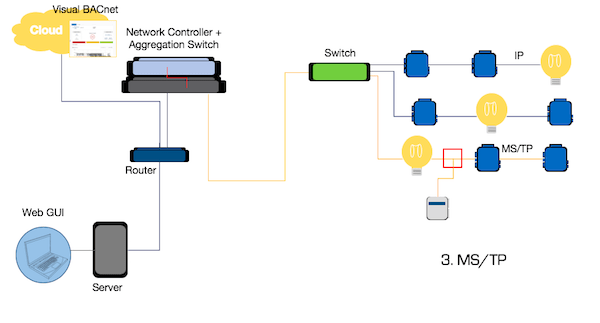
The Visual BACnet Capture Tools can also connect to the MS/TP chain, so you can skip the headache of going on site to capture traffic. Capturing here will allow you to see the token passing on the MS/TP chain. Again, we connected using the Visual BACnet Capture Tool, but you could also connect and capture from Wireshark.
If you do capture traffic with a Visual BACnet Capture Tool for IP or MS/TP, these pcaps will upload directly into Visual BACnet. After you install the tool, these regular uploads will keep running in the background. There’s no need to go on site to find and diagnose issues; just pull up Visual BACnet to see how that segment of your network is performing.
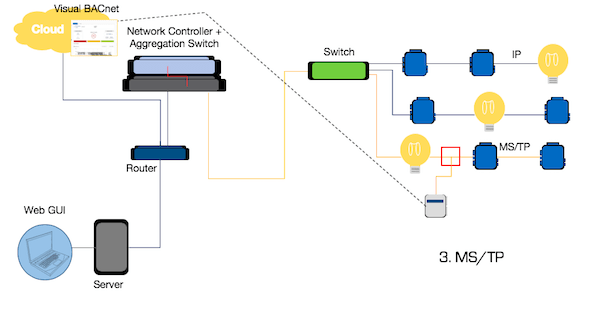
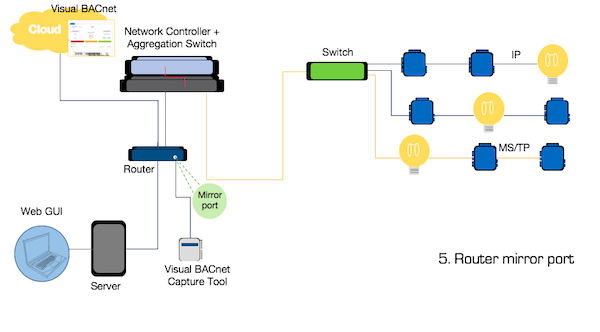
Another great, though challenging, option is to set up mirror ports on your routers or switches. That will mirror all of the traffic from your different IP and MS/TP chains, allowing you to see everything. That means you won’t need as many Capture Tools on the network, although setting up a mirror port is difficult and will likely require support from IT.

If you have a proprietary device — maybe a controller — that fits right under the server and communicates with the server using a proprietary protocol, packet capture from the server won’t work. You won’t see any BACnet traffic, because everything will stop right at this proprietary device and be translated into a proprietary language. In that case, you can try to capture on the controller, depending on what controller you’re using. Or, you’ll have to find different ways to capture throughout the network, like the IP and MS/TP chains or mirror ports.

We hope you learned something from this session on capturing traffic for Visual BACnet!